The step I ignored at first… and why it matters more than you think
When I first started using Pinterest for my blog, I was just posting pins and hoping for traffic.
No strategy. No setup. Just uploading and waiting.
And honestly, nothing really happened.
It wasn’t until I learned about claiming your website on Pinterest that things started to change.
Suddenly:
- my profile looked more professional
- my pins were linked directly to my site
- and I could actually track what was working
It’s a small step, but it makes a big difference.
If you’re trying to grow a blog, get traffic, or even make money from Pinterest, this is something you should not skip.
What Does It Mean to Claim Your Website on Pinterest?
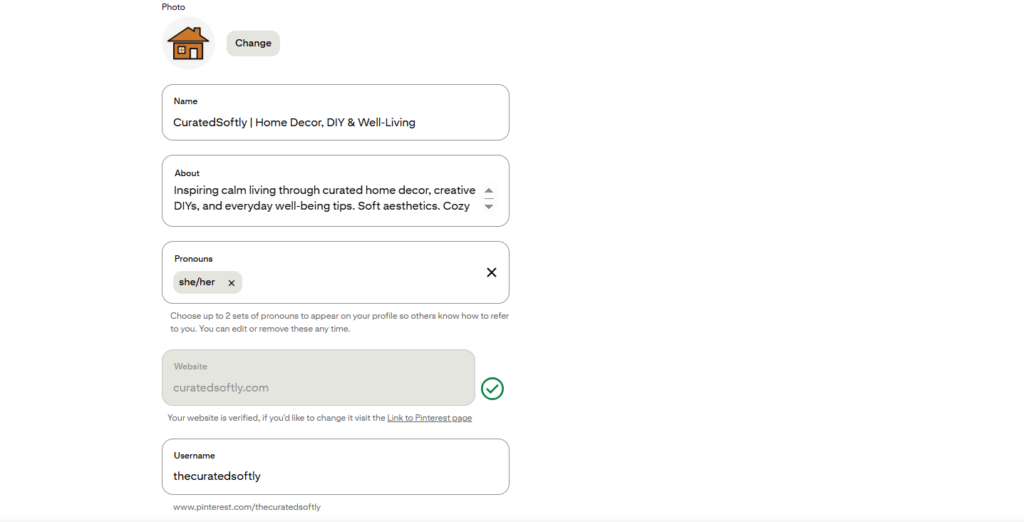
Claiming your website simply means connecting your blog or site to your Pinterest account.
Once it’s claimed:
- your website URL appears on your profile
- your profile picture shows on all pins from your site
- you get access to analytics for your content
- Pinterest recognizes you as the original creator
It basically tells Pinterest:
“This content belongs to me.”
And that matters more than most people realize.
Why Claiming Your Website Is Important for Growth
If you’re serious about using Pinterest for traffic, this is not optional.
Here’s why it matters:
1. You Get Access to Analytics
You can see which pins are driving clicks, saves, and impressions.
2. It Builds Trust
Your profile looks more professional and credible.
3. It Helps With SEO
Pinterest can better understand your content and rank your pins.
4. You Get Credit for Your Content
Even if others share your pins, your account is still connected to them.
When I finally did this, it felt like I went from “just posting” to actually building something.
What You Need Before You Start
Before you claim your website, make sure you have:
- a Pinterest account
- access to your website backend (WordPress, Blogger, etc.)
- your website URL ready
That’s it.
No technical skills needed.
Step-by-Step: How to Claim Your Website on Pinterest
Step 1: Go to Pinterest Settings
Open your Pinterest account and go to Settings.
Step 2: Find the “Claim” Section
Scroll until you see the “Claim” option.
This is where you connect your website.
Step 3: Enter Your Website URL
Add your blog or website link.
Make sure it’s correct.
Step 4: Choose a Verification Method
Pinterest gives you a few options:
- HTML tag (most common)
- HTML file upload
- DNS record
Most beginners use the HTML tag method because it’s the easiest.
Step 5: Add the Code to Your Website
Copy the code Pinterest gives you.
Then paste it into your website’s header section.
If you’re using WordPress, you can do this using:
- a theme settings panel
- or a plugin like Insert Headers and Footers
Step 6: Click Verify
Go back to Pinterest and click Verify.
If everything is done correctly, your site will be claimed instantly or within a few minutes.
How Long Does It Take?
In most cases, it takes:
- less than 5 minutes to set up
- a few seconds to verify
Sometimes Pinterest may take a little longer, but usually it’s very quick.
How to Check If Your Website Is Claimed

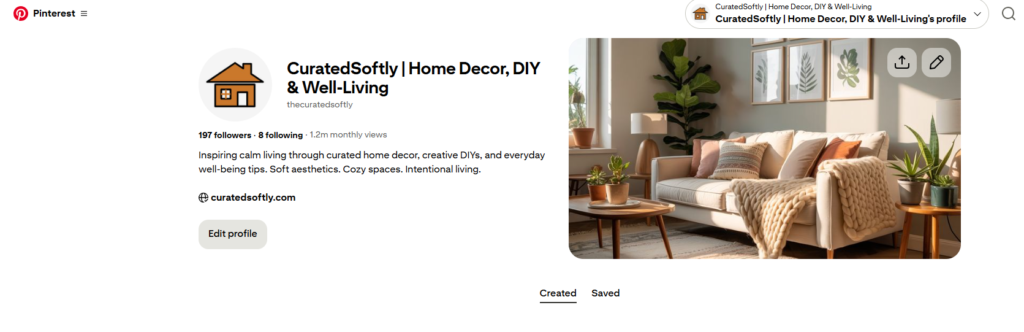
Once verified, you’ll see:
- a globe icon next to your website on your profile
- your URL displayed clearly
- access to analytics
That’s how you know it worked.
What Comes Next (Second Half)
In the next section, I’ll show you:
- common mistakes to avoid (this saves a lot of frustration)
- what to do if verification fails
- how claiming your site boosts Pinterest traffic
- tips to actually grow your blog using Pinterest
Common Mistakes to Avoid (This Is Where Most People Get Stuck)

Claiming your website is simple, but there are a few small mistakes that can stop the process from working.
I’ve made some of these myself, so it’s worth paying attention here.
Adding the code in the wrong place
The HTML tag must go inside your website’s head section, not the body.
If it’s placed incorrectly, Pinterest won’t detect it.
Not saving changes properly
After adding the code, make sure you actually save or publish your changes.
It sounds obvious, but it’s an easy step to miss.
Using the wrong website version
Make sure you use the exact same URL format:
https://yourwebsite.com- or
https://www.yourwebsite.com
Mixing them can cause verification to fail.
Removing the code too early
Even after verification, keep the code in place for a while to avoid issues.
What To Do If Verification Doesn’t Work

If Pinterest doesn’t verify your website right away, don’t panic.
Here’s what I usually check:
1. Refresh and try again
Sometimes it just needs a minute.
2. Clear your cache
If you’re using WordPress or a caching plugin, clear your cache before retrying.
3. Double-check placement
Make sure the code is exactly where it should be.
4. Try a different method
If the HTML tag doesn’t work, switch to:
- HTML file upload
- or DNS verification
One of them will usually work.
How Claiming Your Website Actually Helps You Grow
This is the part most tutorials skip.
Claiming your website isn’t just a technical step — it directly affects your growth on Pinterest.
Your pins get stronger distribution
Pinterest can connect your content to your account, which helps it understand what you post.
You build authority over time
The more content linked to your domain, the more Pinterest trusts your account.
Your traffic becomes more consistent
Instead of random spikes, you start getting steady clicks.
When I claimed my site and started pinning consistently, I noticed something shift.
My content didn’t just sit there anymore — it started moving.
Simple Strategy After Claiming Your Website
Once your website is claimed, don’t just leave it there.
This is where most people miss the opportunity.
Here’s what I personally focus on:
1. Pin consistently
Even 1–3 pins a day is enough to start.
2. Link every pin back to your blog
Always direct traffic to your own content.
3. Use clear, keyword-focused titles
Think about what people are actually searching for.
4. Focus on a niche
Don’t post everything. Stay consistent with your content topics.
Quick Example of a Good Pinterest Title
Instead of:
“Healthy Salad Ideas”
Use:
“12 Easy Salads Without Lettuce You’ll Actually Want to Eat”
Clear. Specific. Searchable.
How Long Before You See Results?
This is where expectations matter.
Pinterest is not instant.
Most people start seeing:
- small traffic in a few weeks
- noticeable growth in 1–2 months
- strong results in 3+ months
The key is consistency, not perfection.
Final Thoughts
Claiming your website on Pinterest is one of the easiest steps you can take, but it’s also one of the most important.
It takes minutes to set up, but it sets the foundation for:
- better visibility
- more traffic
- and long-term growth
If you’re serious about using Pinterest to grow your blog, this is not something to skip.
Do it once, do it properly, and build from there.